
NukBord / Life at the desk
Your desk.
Your world.
Make yourself at home.
A day around NukBord · campaign imagery
See the actual productNukBord / Windows workstation for MetaTrader 5
The charts you come back to. The plan you take time over. The details you keep. Bring your trading day together in the NukBord Windows workstation.
Tested on practice accounts and recorded data. The local MetaTrader 5 connection is not yet qualified for customer use.
The Windows app is not published yet. Members get the download on their account page when it is.
Actual product captures · sample data
See what is on your screen.
Choose a view. Enlarge it to inspect the real controls and their numbered notes.
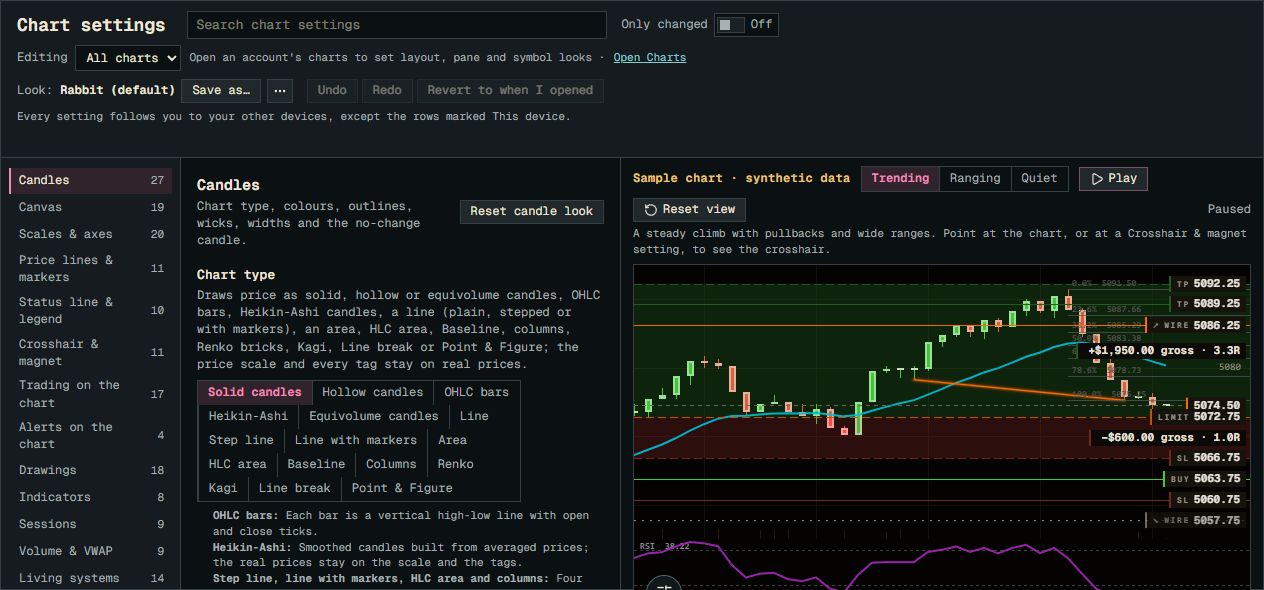
Editing shows the scope. All charts sets the base look; an open account also provides layout, pane and symbol scopes. Check that scope before changing a setting.
Current Chart settings with a paused synthetic sample. The example order overlays and all displayed amounts are illustrative.
Product screenshot with sample data. Pictured controls are not live.
Select a numbered marker. Arrow keys move through notes.
Life around the desk
There is more to the day
than the trade.
A place to prepare. Time to think it through. Something useful to come back to. See how NukBord fits the rhythm.

Before the session
What belongs on your screen?
The first coffee. Your familiar desk. A few minutes to get your view in place before the day gets moving.
One, four or eight chart panes side by side, each with its own drawing tools and a pan and zoom control puck.
Built around your work
Room for your process.
The member workstation / feature library
More depth.
One workspace.
Library and Studio
Indicators
A library of indicators and a Studio for tuning their settings, saving variations and comparing them.
Instrument table
Screener
A full-width table of instruments that you filter by value, sort, and save as screens.
Rules and backtests
Strategies
Choose ingredients, review the rules, run a deterministic backtest, and replay it bar by bar.
Per-trade report
Execution review
A per-trade report separating your request, verified fills, slippage where evidence allows, recorded costs and missing observations.
Strategies / Backtest and paper results are hypothetical. They are calculated on past data with the assumptions you set, do not reflect real trading costs or fills, and do not predict future results.
Explore the rest of the workstation6 more features
Chart deck
Charts
One, four or eight chart panes side by side, each with its own drawing tools and a pan and zoom control puck.
Order staging
Entry Pad
Stage an order by dragging entry, stop and target lines on the chart, size it, and inspect the draft before deciding to send.
Lists and instruments
Tickers
Build named lists of instruments, browse the instrument library, and inspect the instrument you select.
Trading record
Logbook
The Day, The Log, Calendar & Results and journal notes keep a record of what you did and how it turned out.
Saved work
Offline review
Saved layouts, charts, drawings, journal and recordings reopen without a connection, and backups are verified before they restore.
Built-in rules
Order safety
The workstation never blindly resends an order whose outcome is unknown, and orders are sent only by you or by protection rules you reviewed and switched on.
Explore the workstation tools. Open a guide to read the controls and their limits.
Execution Review / Product guide
See the actual report.
Read the request, fill, dispatch quote and missing evidence.
An annotated guide over an actual product still with synthetic Practice inputs. Inspect the report’s fields and missing evidence.
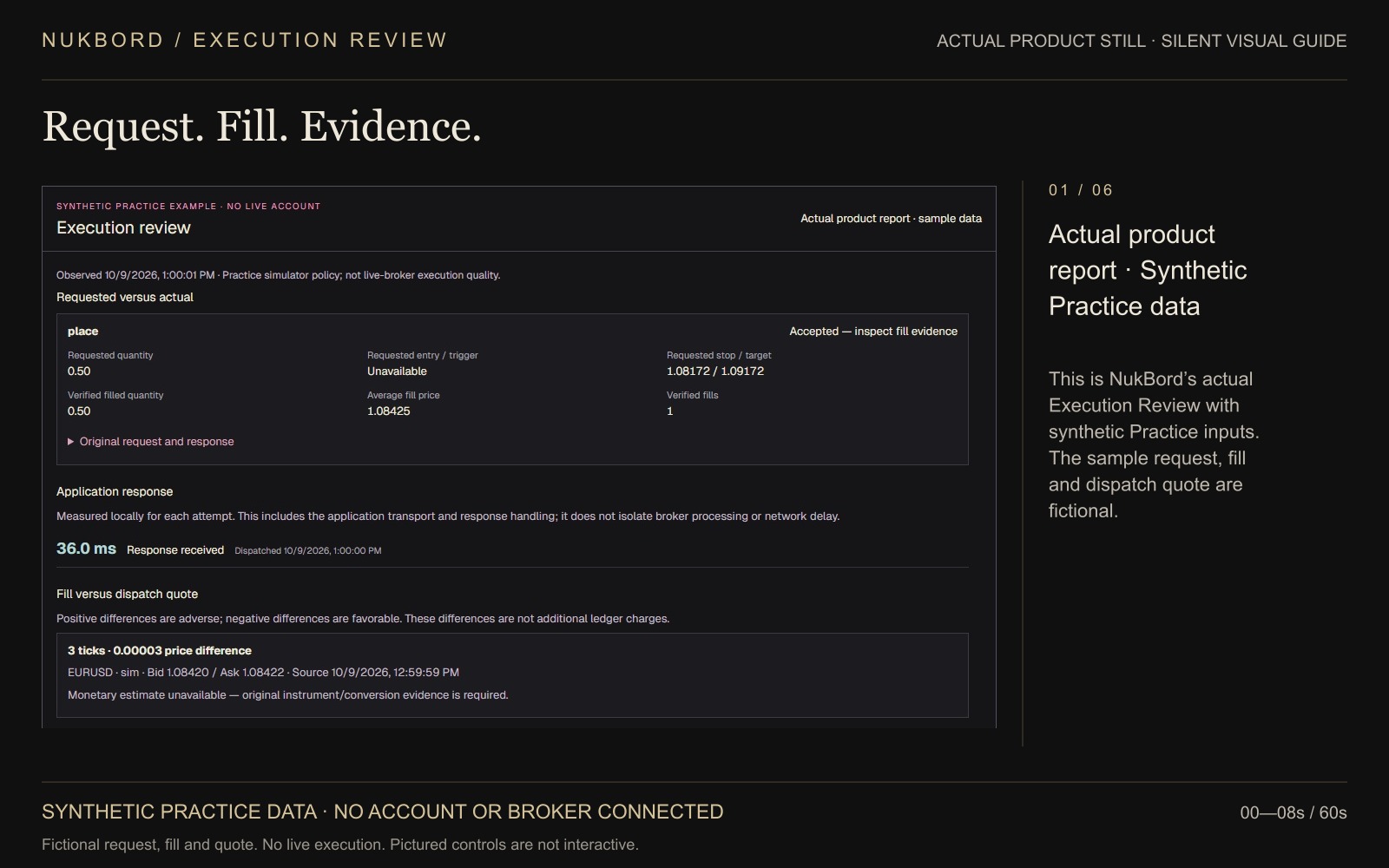
Product guide · 1:00 · Edition 2026-10-09
Read the fill. Keep the evidence.
Silent annotated guide made from an actual product still, not a screen recording. Synthetic Practice inputs; no account or broker connected and no live execution.
NukBord / After Hours
Apparel · Objects · Everyday
The desk is yours.
So is the uniform.
The layer you reach for. The objects you keep close. Quiet signatures for your time at the desk and the hours beyond it.
Explore After Hours

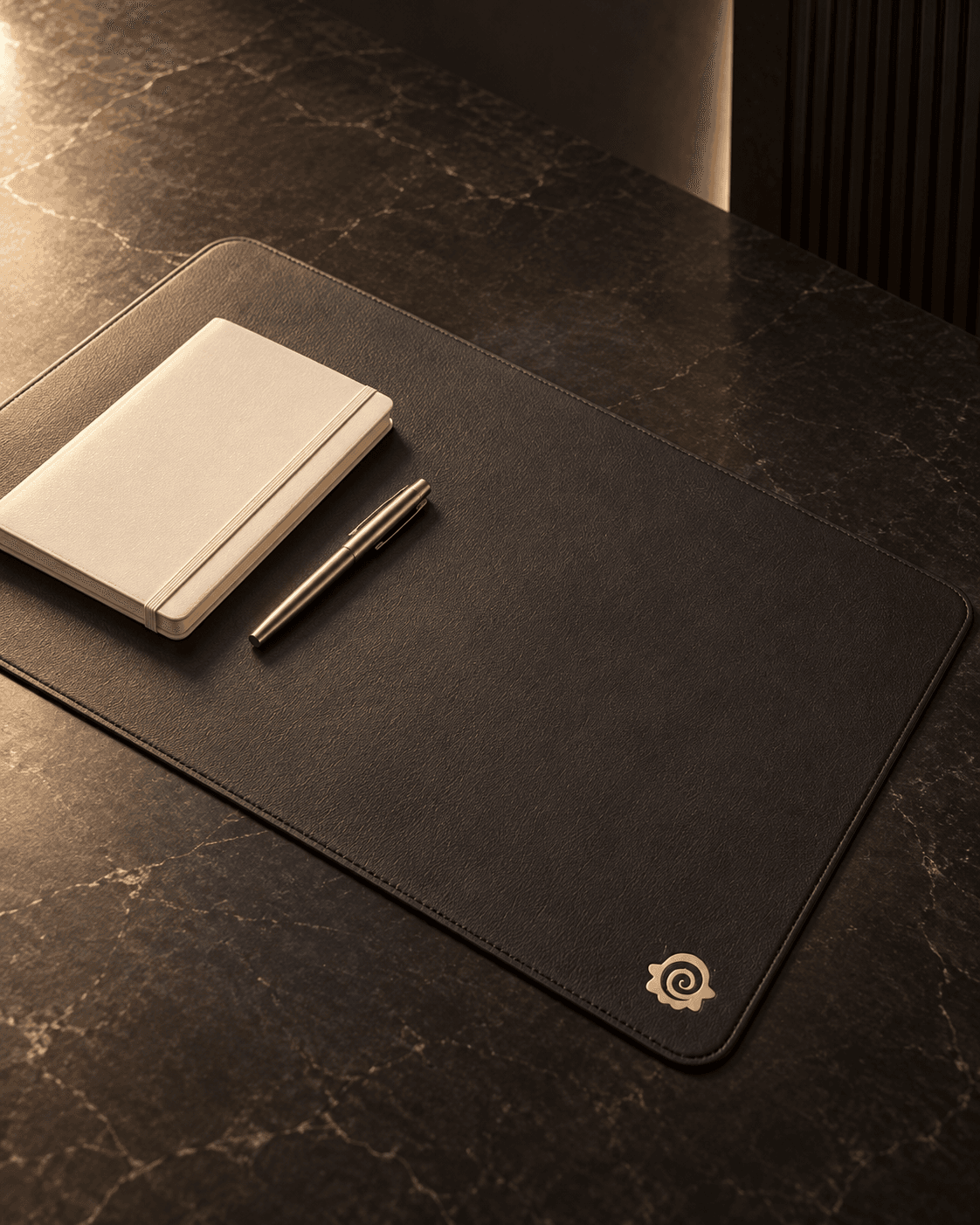
Sample store · concept imagery and products. Explore the details and demo bag; no payment or physical orders.
The member workstation
Make it your
workstation.
One membership for the NukBord workstation on Windows. It covers the app's features listed below, for as long as the membership is active.
The simulated workstation lets you try the controls without an account, a market connection or a real order.
The member workstation brings named instrument lists kept per account, staged order drafts, your Logbook trading record into the same workspace.
Explore the simulated tourPricing not published
Membership pricing.
The membership page will show the published Stripe price.
- Platform
- Windows desktop
- Account access
- Existing accounts only
- Billing
- Managed through Stripe
Tested on practice accounts and recorded data. The local MetaTrader 5 connection is not yet qualified for customer use.
Pricing and release availability are shown before you join. No purchase starts here.
Already a member? Open your deskNew accounts are not open yet. Existing account holders can sign in to review membership and access their desk.
Sign-in opens your Account page. It checks your own membership, billing and download access.
Sign in with an existing accountThe Windows app is not published yet. Members get the download on their account page when it is.
Check download availabilityBefore connecting MetaTrader 5
A local MetaTrader 5 connection needs MetaTrader 5, Python 3.11 and the MetaTrader5 package installed on the same PC. NukBord does not install them, and that connection has not yet been qualified for customer use.
Billing & cancellation
The following applies to the currently configured recurring membership. The one-year and ten-year offers are upfront fixed terms: access starts when payment succeeds and ends after the purchased term, with no automatic renewal. Those offers remain unavailable for purchase while refund, tax and remaining purchase terms are finalized.
The membership renews automatically each billing period until you cancel.
Manage your card, download invoices and cancel at any time from your account page, through Stripe's secure billing portal.
If you cancel, the membership stays active until the end of the period you have paid for.
For the way you work
Start with the work
you recognise.
Choose a reading path, explore its simulated example and check what the workstation does.
Arrange charts and save a layout
Four instruments are moving and you need all of them in view.
Prepare and review an order draft
You think in risk per trade, not in lots.
Understand a request, fill and slippage
You want to know what you asked for and what you actually got.
Build, backtest and inspect rules
You want to read exactly what the rules will do before you test them.
Before you decide
The details.
Up front.
The membership, the setup and the controls. Clear answers before the next step.
Read every buying questionCan I explore before joining?
Yes. The tour and test drive use simulated data and let you try the workstation without sending real orders. No account or market connection is needed for the browser demonstration.
What is included in the membership?
One membership covers these workstation features while the membership is active: Charts, Entry Pad, Tickers, Indicators, Screener, Strategies, Logbook, Execution review, Offline review, Order safety.
In the Windows workstation, the List Builder keeps named instrument lists per account; the Entry Pad keeps your staged order drafts; the Logbook keeps your trading record.
Can I download the Windows app now?
The Windows app is not published yet. Members get the download on their account page when it is.
The Download page checks your signed-in account, membership and current release availability. Use the same NukBord email in the Windows app.
What does the workstation need?
NukBord is a Windows desktop application tested on practice accounts and recorded data.
A local MetaTrader 5 connection needs MetaTrader 5, Python 3.11 and the MetaTrader5 package installed on the same PC. NukBord does not install them, and that connection has not yet been qualified for customer use.
Who sends and manages the orders?
Staging an order never sends it. In standard mode, review the complete order before sending. Device One-click can skip that review card; sending still requires your deliberate action. Protection rules act only after you review and enable them.
Trailing stops, stop-to-entry and partial targets are run by the app, and only while it is open, signed in and connected. When the app is closed, only the stop-loss and take-profit held by your broker remain.
How do billing and cancellation work?
Pricing shows the membership terms and current purchase availability. Stripe handles any available checkout, where you review the final total before payment.
The following applies to the currently configured recurring membership. The one-year and ten-year offers are upfront fixed terms: access starts when payment succeeds and ends after the purchased term, with no automatic renewal. Those offers remain unavailable for purchase while refund, tax and remaining purchase terms are finalized.
The membership renews automatically each billing period until you cancel.
Manage your card, download invoices and cancel at any time from your account page, through Stripe's secure billing portal.
If you cancel, the membership stays active until the end of the period you have paid for.
Does membership include a broker or market data?
NukBord is software, not a broker. The browser demonstrations use simulated data; membership does not create a broker account or promise a live market-data entitlement.
Actual data and trading availability depend on the account, connection and provider. Review current requirements before choosing a setup.
Where do I go for product or account help?
Start with the searchable Manual for a control or product reference. The Support page helps you prepare a report and shows the current contact availability. Billing management and invoices live in your member desk.